
Welcome to 2026, a year where desktop manufacturing is more accessible, powerful, and user-friendly than ever before. Whether you are a budget-conscious maker, a design student, or a weekend hobbyist, buying a high-quality 3D printer is only half the battle. The real magic happens digitally.
Navigating the sea of free 3D printing software can be overwhelming, but selecting the right digital toolkit is crucial for turning your imagination into physical reality. If you are looking for the best 3D printing tools without breaking the bank, this guide covers everything from the best 3D modeling software free of charge to the most advanced slicer software 2026 has to offer.
What is 3D Printing Software?
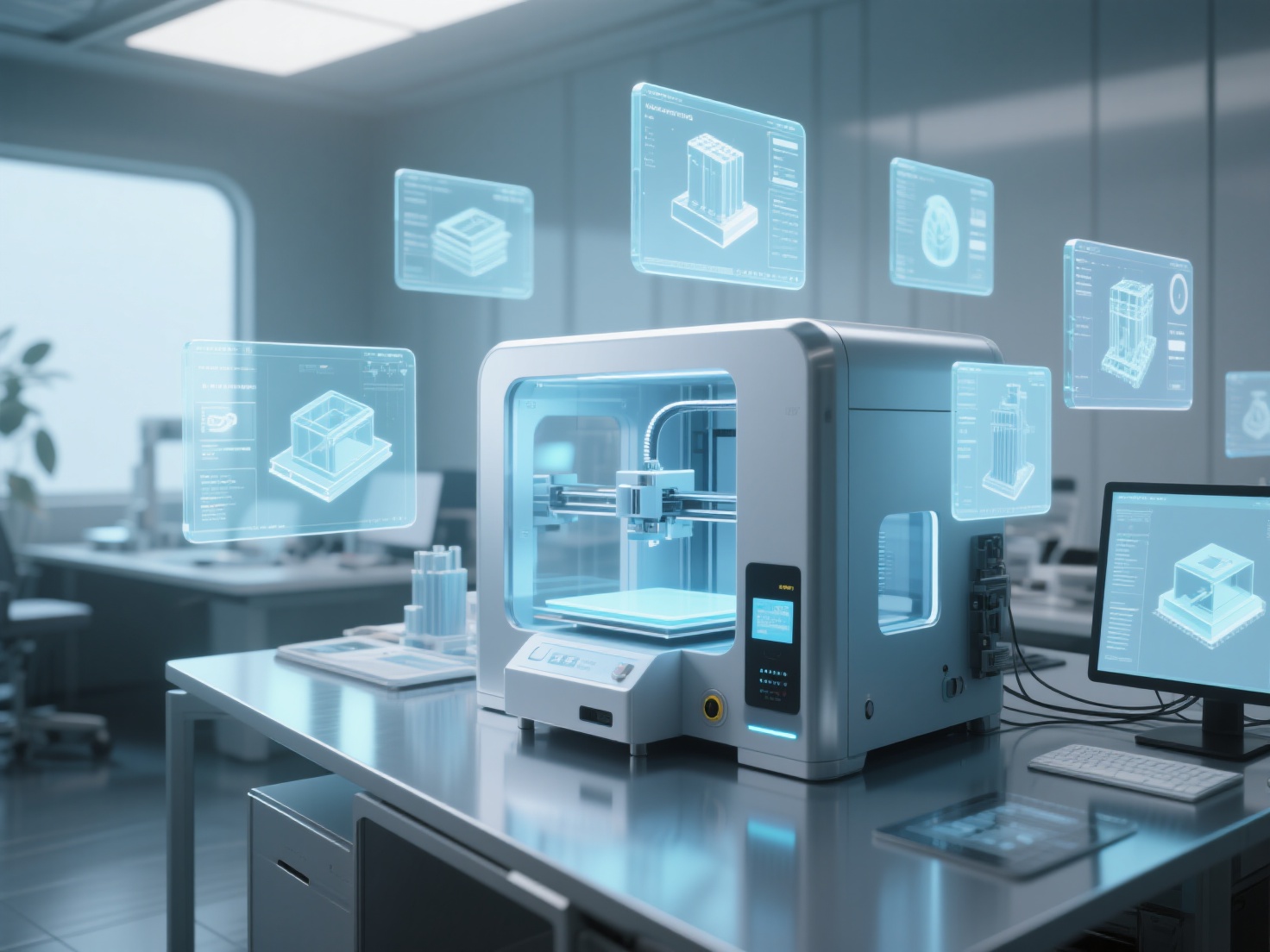
3D printing software is a collection of digital applications used to design (modeling), prepare (slicing), and fix (repair) 3D models so they can be accurately manufactured by a 3D printer.
In a standard workflow, a creator uses a CAD or sculpting program to create a 3D object, a repair utility to ensure the geometry is solid (“watertight”), and a slicer to translate that 3D object into a language (G-code) that the physical printer understands. Having the right combination of these tools is the secret to flawless prints.
The Ultimate 3D Printing Software Workflow
Before diving into the tools, it is essential to understand how they connect. Here is a simple workflow diagram mapping out the journey of a 3D model:
| Stage | Action Required | Recommended Tool Categories |
|---|---|---|
| 1. Ideation & Generation | Create the shape from scratch or generate it via AI. | 3D Modeling Software / AI Generators |
| 2. Mesh Repair | Fix holes, flipped normals, and non-manifold edges. | File Repair & Preparation Tools |
| 3. Slicing | Convert the 3D mesh into printable layers (G-code). | Slicer Software |
| 4. Printing & Viewing | Preview the file, manage the printer, and print. | 3D Viewers / Printer Control Apps |
Top 8 Free 3D Printing Software Tools
Here is our curated list of the 8 essential free tools you need across the entire 3D printing workflow.
1. 3D Modeling Software (Free Tools)
1. TinkerCAD
TinkerCAD is a browser-based, intuitive platform developed by Autodesk. It uses primitive shapes (cubes, cylinders, spheres) that you can add or subtract to create more complex objects.
- Key Features: Drag-and-drop interface, cloud storage, built-in tutorials
- Best For: Beginners, students, and creating simple geometric modifications
- Limitations: Lacks advanced surface modeling and is not suitable for highly complex organic shapes
2. Blender
Blender is the undisputed heavyweight champion of open-source 3D creation. It offers a comprehensive suite for modeling, sculpting, and texturing.
- Key Features: Advanced digital sculpting, massive community plugin support, powerful mesh editing
- Best For: Highly detailed organic models, tabletop miniatures, artistic sculptures
- Limitations: A steep learning curve that can be intimidating for absolute beginners
3. FreeCAD
For mechanical and functional parts, FreeCAD is the go-to open-source parametric 3D modeler. You design by defining parameters and dimensions, making it easy to adjust your model later.
- Key Features: History-based parametric modeling, robust 2D sketcher, engineering-focused tools
- Best For: Replacement parts, mechanical brackets, precise dimensional prints
- Limitations: Dated UI and performance issues with complex assemblies
2. Slicer Software (2026)
4. Ultimaker Cura
Cura remains one of the most popular and versatile slicers globally, offering hundreds of settings to fine-tune print profiles.
- Key Features: Massive printer profile library, excellent custom supports, frequent updates
- Best For: Universal slicing needs and users who want deep parameter control
- Limitations: Can overwhelm beginners due to the sheer number of options
5. PrusaSlicer
Developed by Prusa Research, PrusaSlicer is known for speed, reliability, and precision.
- Key Features: Industry-leading auto-supports, multi-color slicing, clean UI
- Best For: Highly optimized toolpaths and pristine FDM print quality
- Limitations: Default profiles are heavily optimized for Prusa hardware
3. File Repair & Preparation
6. Meshmixer
Often called the “Swiss Army Knife” for meshes, Autodesk’s Meshmixer remains essential in 2026 despite discontinued updates.
- Key Features: Hollowing, custom tree supports, automatic hole patching
- Best For: Resin prep, hollowing large models, basic digital kitbashing
- Limitations: Outdated UI and occasional crashes with very high-poly models
7. Netfabb Basic (Mesh Fixing)
Netfabb’s free tier is powerful for analyzing and repairing broken STL files.
- Key Features: Automatic mesh repair, precise scaling, model slicing
- Best For: Fixing non-manifold edges, inverted normals, large model prep
- Limitations: Free version has fewer features than the paid edition
4. File Viewing & Quick Edits
8. Windows 3D Builder
Pre-installed on many Windows PCs, 3D Builder is underrated for quick prep tasks.
- Key Features: Instant file viewing, fast auto-repair, simple text embossing
- Best For: Quick STL/OBJ checks and simple mesh fixes
- Limitations: Not suitable for complex design work
Real-World Applications: Building Your Tech Stack
To see how these tools work together, here are two common scenarios:
Scenario A: Printing a Custom Drone Bracket
You need a precise functional part. Start in FreeCAD using exact measurements, export the STL, verify it in Windows 3D Builder, then slice it in PrusaSlicer and send the G-code to your printer.Scenario B: Creating a Tabletop RPG Miniature
You sculpt organic details in Blender, hollow and fix geometry in Meshmixer, then slice in Ultimaker Cura using tree supports.
Best Practices for a Seamless Workflow
Start Simple, Grow Later
Begin with TinkerCAD before moving into Blender or FreeCAD.Always Check Your Normals
Run models through Netfabb or 3D Builder before slicing.Optimize Poly Count
Reduce polygons where possible—FDM printers won’t benefit from extreme detail.Leverage AI for Heavy Lifting
In 2026, AI tools significantly reduce modeling time.
Elevate Your Workflow with the Best 3D Printing Tools
Finding the right free 3D printing software is the foundation of a successful maker journey. Tools like Blender, FreeCAD, and Cura are indispensable, but they all share one common bottleneck: manual modeling takes hours, sometimes days, to master and execute.
What if you could bypass the steepest part of the learning curve entirely?
Enter Hitem3D, a next-generation AI-powered 3D model generator that perfectly complements your traditional software stack. Built on the in-house Sparc3D (high precision) and Ultra3D (high efficiency) models, Hitem3D allows you to simply upload a 2D image—single or multi-view—and generate production-ready 3D models instantly.
For 3D printing enthusiasts, Hitem3D is a game-changer. Utilizing advanced Invisible Parts technology, it brilliantly reconstructs hidden and invisible structures beyond just the visible surfaces, outputting print-ready geometry with sharp, defined edges. Need to print immediately? Hitem3D offers one-click direct send to Bambu Studio and OrcaSlicer, ensuring a seamless bridge from AI generation straight to your printer bed.
Furthermore, if you are printing full-color sandstone or using advanced multi-color FDM, Hitem3D’s De-Lighted Texture removes baked-in lighting for true relightable materials at 4K resolution, while its Multi-Color Segmentation cleanly divides models into distinct color regions. And with a forgiving Free Retry system, you can perfect your generation without wasting credits. Outputting in GLB, OBJ, STL, FBX, and USDZ formats, it drops perfectly into any of the 8 free software tools listed above.
Trusted by creators in over 50 countries, Hitem3D is offering new users 100 free credits to try the platform today. Ready to turn your images into perfect, printable 3D models in minutes?
Create For Free -> https://www.hitem3d.ai/create

Frequently Asked Questions (FAQ)
Q1: Do I need a powerful PC to run free 3D printing software?
Not necessarily. Tools like TinkerCAD run entirely in your web browser, requiring minimal processing power. Slicers like Cura and PrusaSlicer run fine on average laptops. However, advanced sculpting in Blender or handling multi-million polygon files will require a dedicated GPU and plenty of RAM.
Q2: What is the best slicer software in 2026?
There is no single “best” slicer, as it depends on your hardware. Ultimaker Cura is highly recommended for its universal compatibility and massive profile library, while PrusaSlicer (and its forks like Bambu Studio/OrcaSlicer) is favored for high-speed printing and superior auto-supports.
Q3: Can I generate 3D models for printing just from photos?
Yes! While traditional photogrammetry requires dozens of photos and complex software, modern AI tools like Hitem3D can generate highly accurate, fully-geometric, and print-ready 3D models from just a single image or a small multi-view set (2–4 images), complete with sharp edges ideal for slicing.
Q4: Why do I need file repair software?
3D models, especially those downloaded online or exported from video games, often contain “non-manifold” geometry—meaning they have holes, paper-thin walls, or overlapping faces. Slicers get confused by these errors, resulting in failed prints. Repair tools ensure the digital model is a solid, “watertight” object.